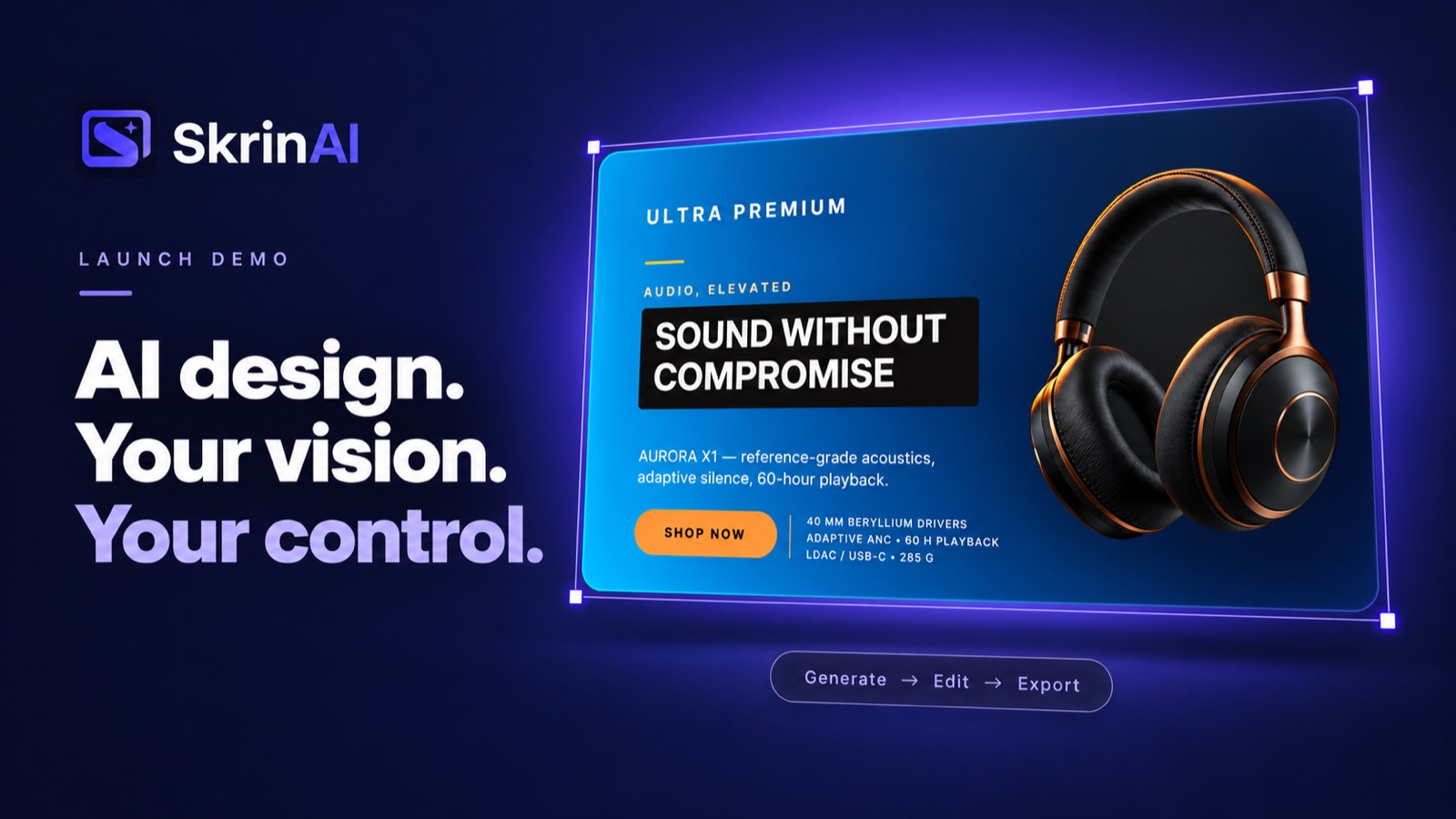
SkrinAI is an AI-powered design tool for social media. Describe the post you need, and it builds it on your canvas as separate text, image, and shape layers you can change with another prompt or by hand.
Start with a screenshot, a template, an existing design, or a blank canvas.
Say what you want
Ask for a launch post or a story ad in plain language. Select an element first when the instruction is about that element.
SkrinAI reads the canvas
It understands layers, selection, properties, pages, your brand colors and fonts, and image contents.
It performs the edits
Structured changes land on real layers. Keep prompting or take over by hand.
Editable AI-Generated Social Media Designs
SkrinAI is an AI design tool with manual editing built in. Your instructions change actual objects on the canvas, and every text block, image, shape, page, and effect stays editable after the agent is done.
BEFOREAFTER · 1 TURN
DESIGNED IN SKRINAI
SHIP THE NEXT IDEA.
SHIP THE NEXT IDEA.
↔
Drag to compare. Use arrow keys for fine control, Home or End for the full design.
SkrinAI vs ChatGPT Image Generation vs Canva vs Adobe Express
SkrinAI vs ChatGPT Image Generation vs Canva vs Adobe Express — Full Feature Comparison
FEATURE
SkrinAI
ChatGPT Image Generation
Canva
Adobe Express
AI Design Generation (Text → Design)
Yes — generate complete designs from text prompts
Generates complete visual compositions as images from text prompts
Canva AI / Magic Design
Generate Template / AI Assistant
Fully Editable AI-Generated Designs
Editable text, shape, and image layers with full control over each element
Output is a flat image, not independently editable design layers
Editable AI-generated designs and layouts
Editable AI-generated templates
AI-Powered Design Editing
AI editing alongside precise manual controls
Conversational editing and selective image modifications
Magic Edit and AI-powered editing tools
Generative Fill and AI Assistant
Manual Editing Tools
Advanced — layered editing with annotations, cropping, masks, effects, and precise layout controls
Limited — image selection and AI-guided editing; no full design canvas
Advanced — shapes, text, images, layers, effects, and alignment
Advanced — shapes, text, images, layers, effects, and alignment
Annotations
Arrows, highlights, callouts, spotlights, and numbered markers
AI-generated arrows, highlights, and callouts through prompts; no dedicated annotation tools
Shapes, arrows, highlights, and annotation elements
Yes. Describe a post and the agent builds it on your canvas as text, image, and shape layers. When a design needs a new picture, it can generate one, and that picture lands as its own image layer.
Always. Every element the agent creates stays a normal object with the full inspector behind it: transform, fill, stroke, effects, masking, layer order, snapping.
When the instruction requires it. Ask it to blur a phone number or make a face the focal point and it analyses the image to find the region first.
Yes. Brand kits hold your logos, colors, fonts, gradients, and text styles per workspace, and the agent reads the colors and fonts from your workspace's kits as context. To use a logo, attach the image to your prompt or place it on the canvas.
Presets cover LinkedIn posts and carousels, X posts, and Instagram square, portrait, and story formats. For any other placement, set a custom size up to 8192 px per side.
Projects hold as many pages as you need. Ask for a variation or an alternate layout and the agent adds it as a new page, leaving the original alone.
Each plan includes an AI credit allowance for a 30-day usage window. The window starts when your first AI request is accepted. After it expires, your allowance refreshes and the next window starts with your next accepted AI request. One credit covers one agent turn — your prompt, the canvas context it reads, and the edits it applies. Manual editing never costs credits.
PNG, JPG, and PDF at your chosen scale, per page or for the whole project. Exports are unlimited on every plan.
No. SkrinAI designs and exports the graphics, and you upload them to your social networks or scheduler.
What are you posting next?
Start from a sentence, a screenshot, or a design you already have.